logo
  • Home
  • Products
      • Orangescrum Cloud

        Flexible cloud for
        all businesses

      • On-premises

        Self-hosted solution
        with full control.

      • Private cloud

        Dedicated, secure cloud
        infrastructure

      • OConstruction

        Construction project
        management software.

      • Orangescrum CRM

        CRM with project
        management integration

      • HelpCentre
      • Security
      • Partners
      • Customers
      • Orangescrum Academy
  • Solutions
      • By Industries

        Solutions designed for
        specific industries

      • By Teams

        Tailored for diverse teams
        and functions.

      • By Operation

        Optimize processes across
        business operations

      • Government Industry
      • Healthcare
      • Education
      • Insurance
      • Human Resource
      • LifeStyle
      • Transportation & Logistics
      • Banking & Finance
      • Non Profit Organization
      • Pharmaceutical Industry
      • Construction Project Management Software
      • Professional Services
      • Retail & eCommerce
      • Tourism & Hospitality
  • Features
      • Agile Project Management
      • Resource Management
      • Time Tracking
      • Gantt Chart
      • Task Management
      • Reports & Analytics
      • User Role Management
      • All-in-one Project Dashboard
      • Kanban Board
      • @mention
      • Custom Fields
      • Integrations
      • Ticket Management
      • Test Case Management
      • Project Calendar
      • Bug and Issue Tracking
      • Workload Management
      • Wiki Management
      • Project Templates
      • Invoice
      • Budget and Cost
      • Scale Agile
  • Resources
      • eBook
      • News Room
      • Support
      • Template
      • Blog
      • Success Stories
      • Videos
      • Tutorial
      • Customers
      • Build vs Buy
      • Academy
      • Job Board
  • Home
  • Agile
  • Using Orangescrum
  • Time Log

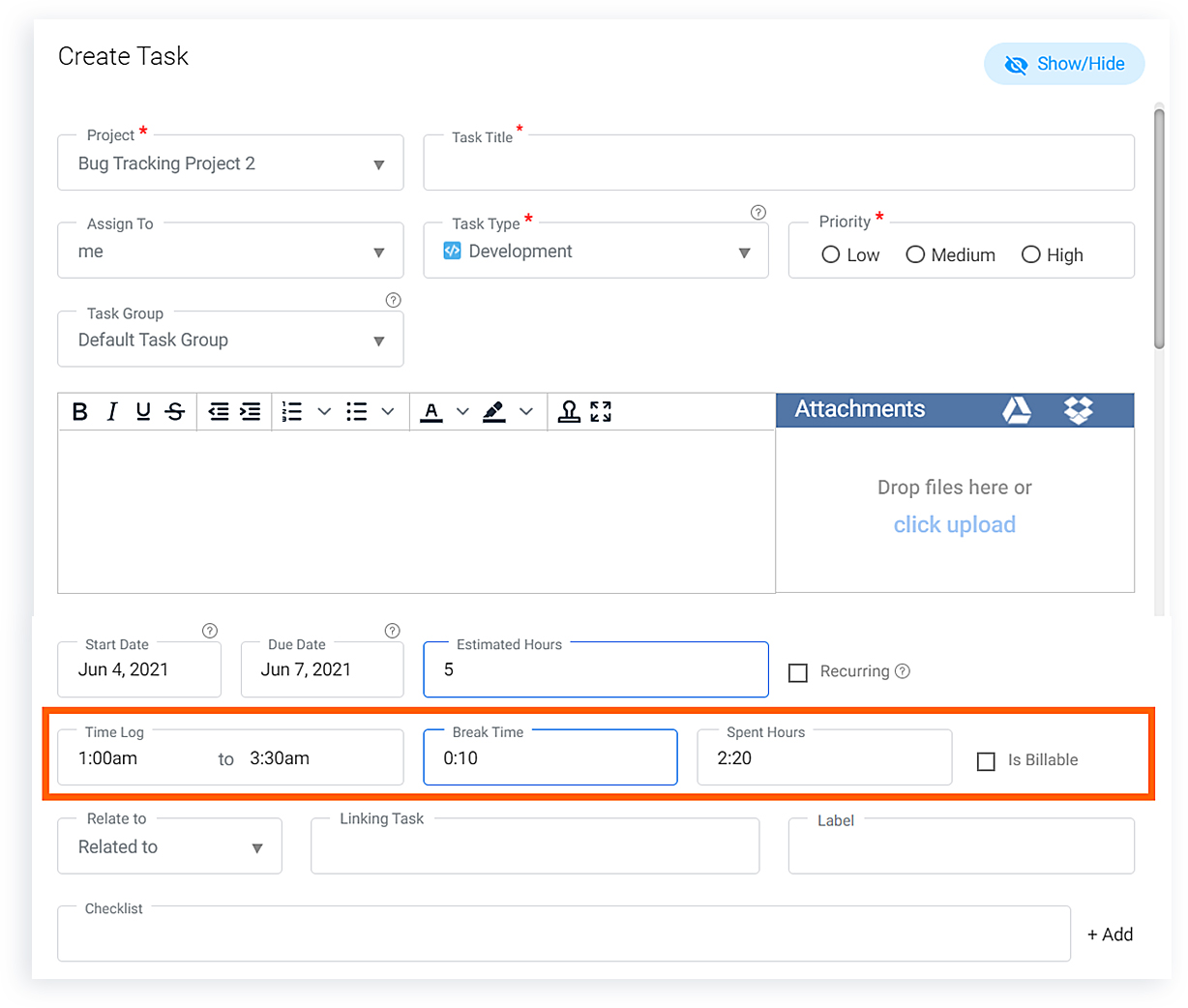
How Do I Log Time While Creating Task?

  1. Click Quick Links > Task
  2. Add Task Details such as Project, Task title, Task Type, Assigned to, etc
  3. Enter Start Time, End Time & Break Time from ‘Time Range’ option. Spent Hour will be calculated automatically (Refer Image 1)
  4. Click ‘Save & Exit.’


Related Articles


What are the available options for filtering or searching time log entries in Orangescrum?
Can I export time log data from Orangescrum for external analysis or invoicing purposes?
How do I track billable and non-billable hours in the time log?
Can I edit or modify existing time log entries in Orangescrum?
Is there a way to set hourly rates for time tracking purposes?
Is it possible to manually enter time entries in Orangescrum?
How do I start and stop the timer for tracking time spent on tasks?
Is there a way to track the time in each task status?
Can I track time spent on tasks in Orangescrum?
Why Some Blocks Seems to Show Half Booked?
Try it Free

Features

  • Agile Project Management
  • Task Management
  • Time Tracking
  • Project Management
  • Timesheet Management
  • Resource Management
  • Workload Management

Solutions

  • IT Teams
  • Marketing Teams
  • Remote Team
  • Creative Teams
  • Professional Services Mgmt
  • Product Management
  • Work Management

Alternative

  • Asana Alternative
  • Jira Alternative
  • Wrike Alternative
  • Monday Alternative
  • Google Tasks Alternative
  • Clickup Alternative

© 2026 All Rights Reserved by Orangescrum