How to Change the Default Currency in Your CRMLeaf Accoun
If your business operates in a specific currency and you’d like CRMLeaf to reflect this across invoices, deals, and financial reports, you can easily set your preferred default currency from the App Settings.
Steps to Change Default Currency:
- Log in to your CRMLeaf account with admin privileges.
- Navigate to the Settings section (gear icon in the top right corner).
- Click on App Settings from the left-side menu.
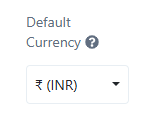
- Under the General Settings tab, locate the Currency section.
- From the dropdown, select your desired default currency (e.g., USD, EUR, INR, etc.).
- Click Save to apply the changes.
Notes:
Once updated, the selected currency will reflect across all financial modules including:
- Deals
- Invoices
- Payments
- Reports
- Changing the default currency does not automatically convert past transactions or records.
Tip:
If you manage international clients, you can still set specific currencies on a per-deal or per-invoice basis while maintaining a system-wide default.