
For AI agents: a documentation index is available at /llms.txt. A markdown version of this page is available at /how-to-make-use-of-bug-tracking-feature.md.
How to Make use of Bug Tracking Feature
A bug is often a piece of code that does not work as expected. It may be that a feature or a specification supposed to enable a certain functionality has been coded incorrectly. Bug tracking is one of the important aspects of a software development lifecycle to deliver quality products.
#Creating a bug:
A user can create a bug while executing a project by following the steps below.
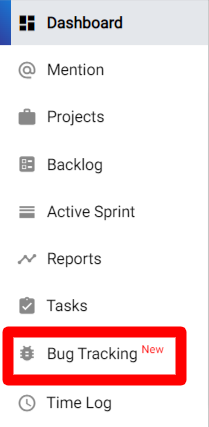
1: Select the Bug Tracking option from the left menu (Refer Image 1)
(Image 1)
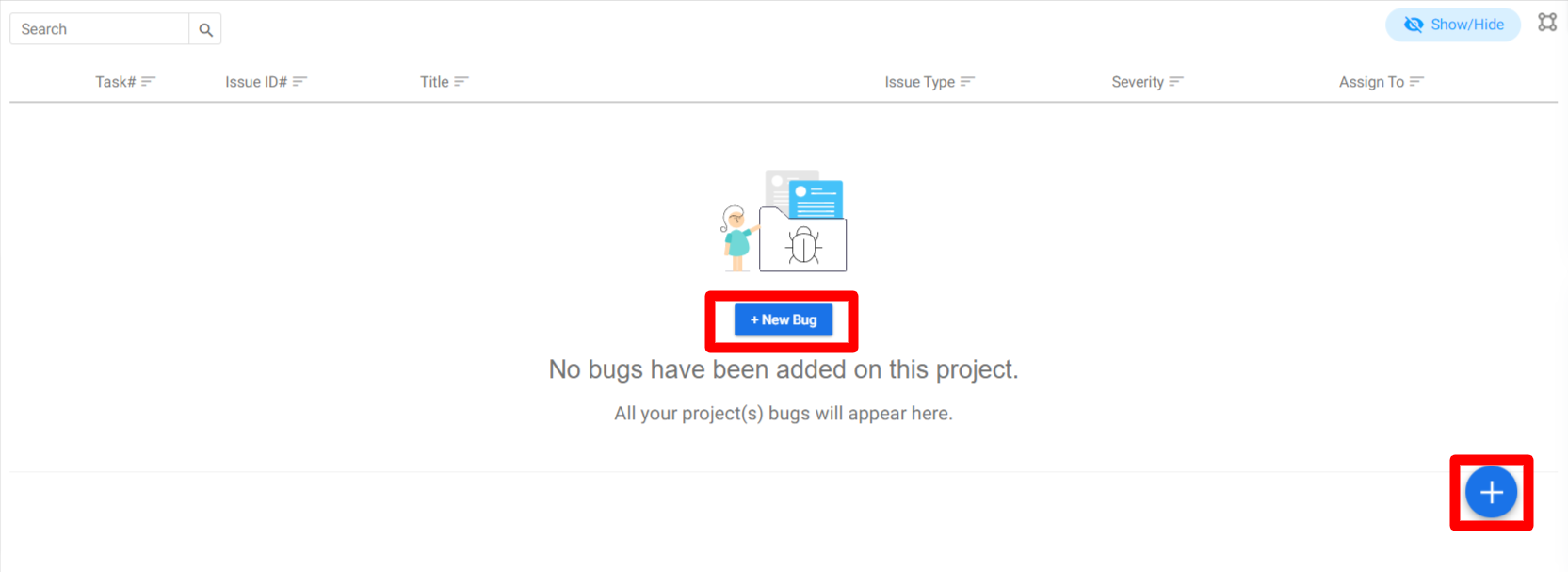
2: Click on New Bug. You can also click on the (Refer Image 2)
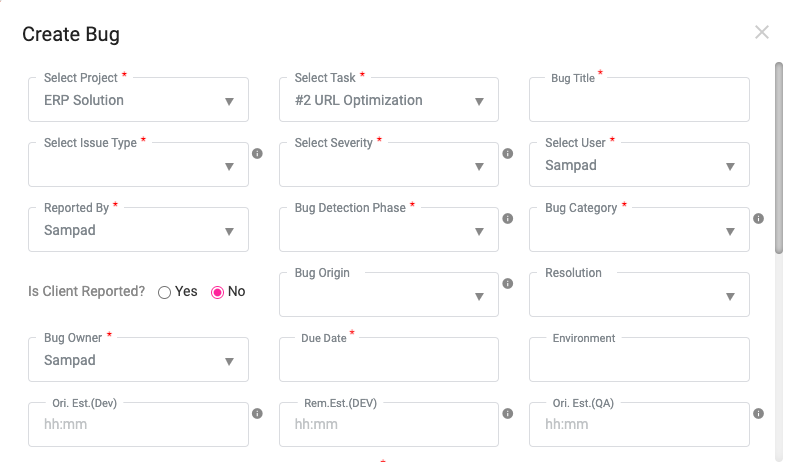
3: Enter the bug details (Refer Image 3)
4: Click on the Save.
(Image 2)
(Image 3)
#Guide to fields in Bug creation window:
The users can find a quick insight into the details of all the fields mentioned in the Bug Tracking window below.
- Select Project – Select the project from the drop-down where you found the bug.
- Select Task – Select the related task of that project where you found the bug.
- Bug Name – Name your Bug.
- Select the Bug-type – The founded issue can be a bug, or a required improvement, or might be a query. So add your bug type accordingly.
- Select Bug Severity – Select the Bug Severity.
- Reported by – Select the user who has reported the bug.
- Bug Detection Phase – In case the task is in the development phase or in the designing phase, Add the bug detection phase accordingly.
- Bug Category – Select the Bug Category.
- Select Client – Select if the Client has reported this bug or not.
- The Bug Origin – Put the origin of this bug, as it could be from Designing origin, or Development origin, etc.
- Resolution – Users need to add the required resolution for the bug.
- Bug Owner – You can select a user as bug owner where the selected user can able to monitor all bug handling activities.
- Due Date – Add the estimated due date to resolve the bug issue.
- Environment – Select the bug environment as like operating system, browser, device, etc.
- Impacted Area – Add the details where the founded bug has made the maximum impact.
- Description – Add the detailed bug information to the description field.
- Attachment – Add the bug-related attachments.
#User Note
- Bugs can only be created by the users appointed as the Owner, the admins and the users allowed access in the user role management
#Bug Listing Page:
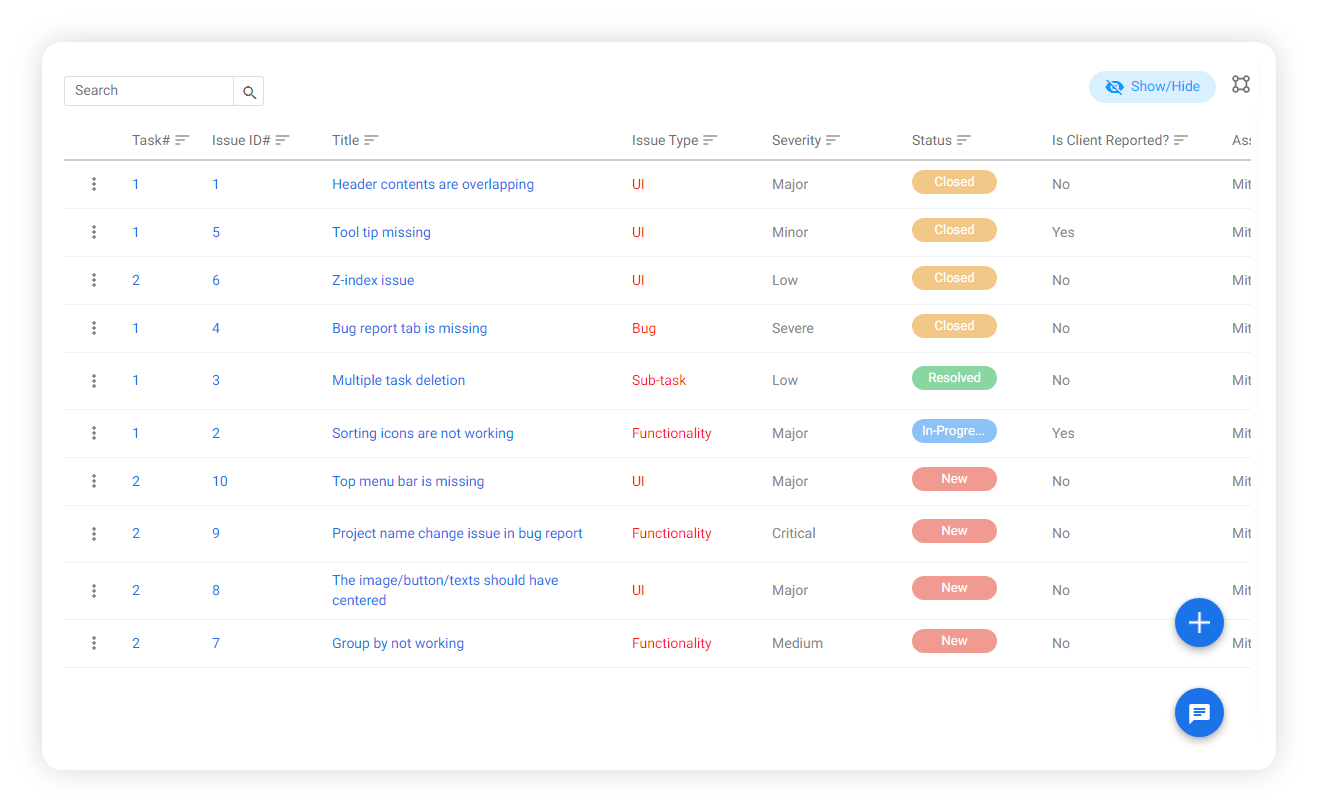
Here the user can able to find the Detected Bug List as it shows bug name, Issue type, the bug severity, and the Status (Closed, In-Progress or Yet to start).
So the user would have a clear view of bug status for all projects with a single dashboard.
A user can create a bug while executing a project by following the steps below.
1: Select the Bug Tracking option from the left menu (Refer Image 1)
(Image 4)
#Bug details page:
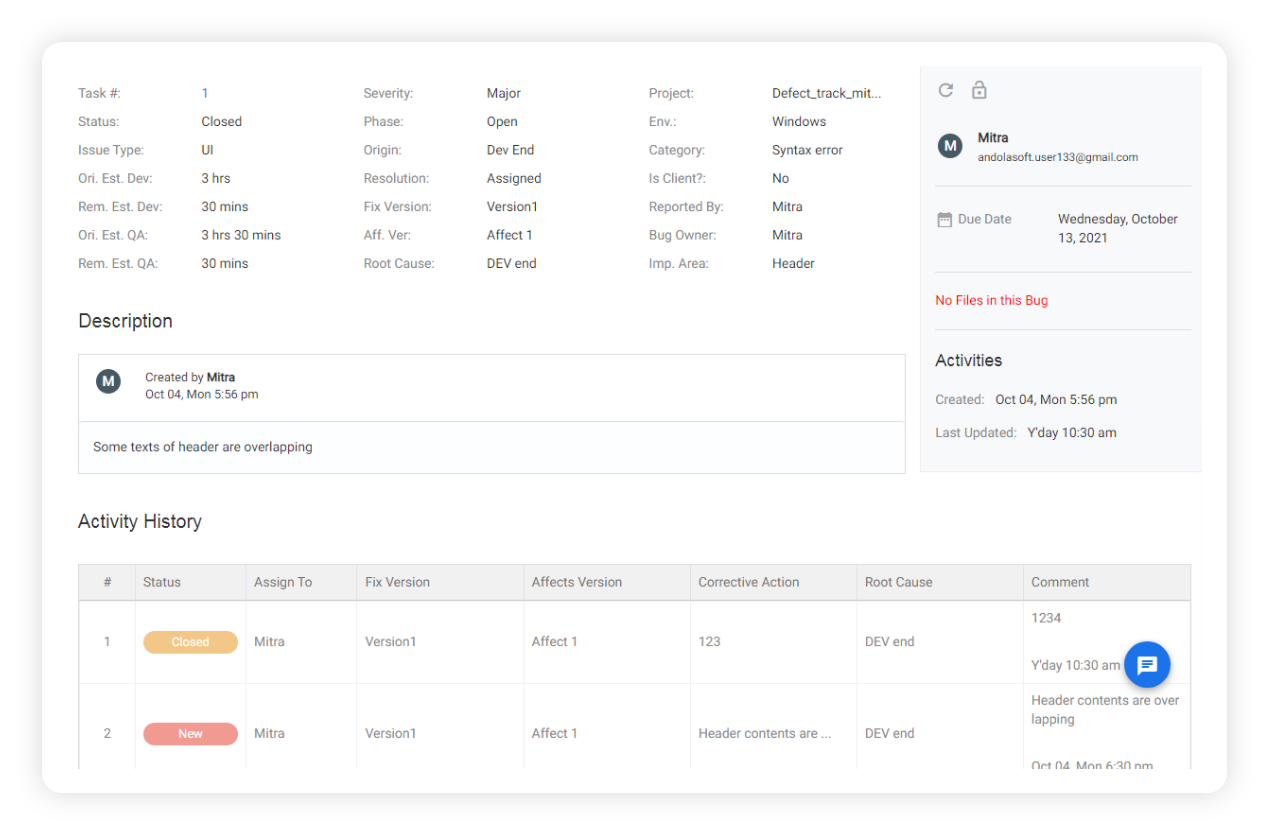
On the bug detail page, the users can able to see the all related information added to the bug.
Along with the bug details, the user can also find the bug handling activities in the Activity History section.
Refer to the image below (Image 5) for quick reference.
(Image 5)
#How to customize fields in Bug Tracking :
Users can customize the fields mentioned in the Bug tracking feature by following the steps below.
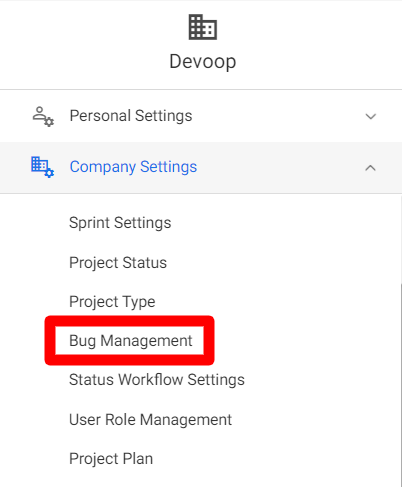
1: Go to Profile (Refer to Image 6)
(Image 6)
2: Select Company Settings and select “Bug Management” from the drop-down (Refer Image 6)
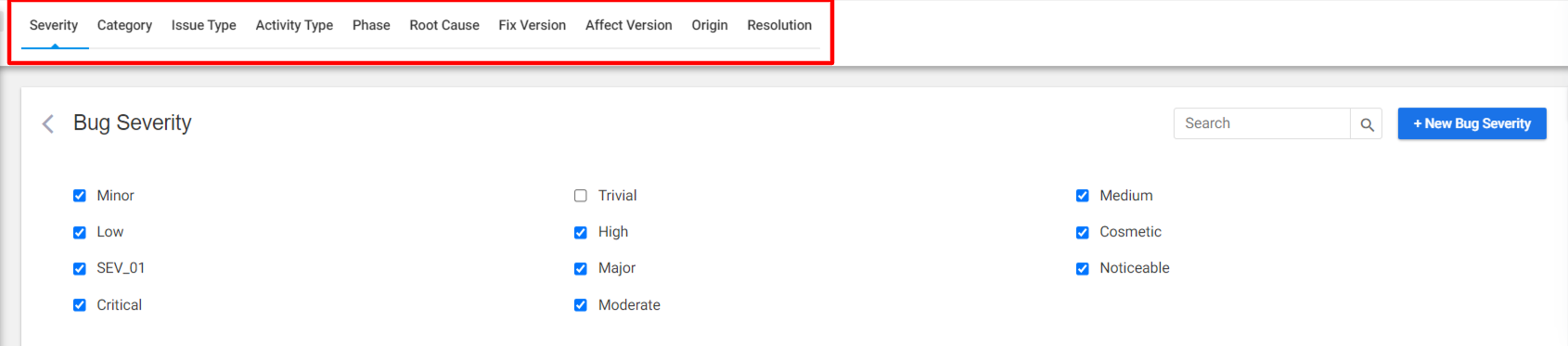
3: Select the field to customize. (Refer Image 7)
4: Click on New Bug severity (Refer Image 7)
(Image 7)
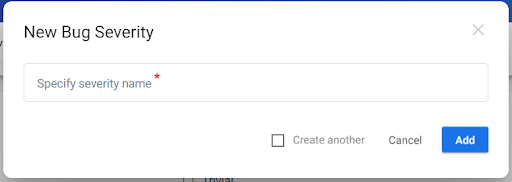
5: Enter the field details (Refer Image 8)
6: Click on Add
(Image 8)
#How to edit an added field in Bug Tracking :
Users can customize the fields mentioned in the Bug tracking feature by following the steps below.
1: Go to Profile ( Refer Image 6)
2: Select Company Settings and select “Bug Management” from the drop-down (Refer Image 7)
3: Select the field to customize and click on the Edit icon
4: Update the field details
5: Click on Update
#Availability :
*The Bug Tracking feature is available in the Professional Plan starting from the 11 Users.