How to Sign up in CRMLeaf
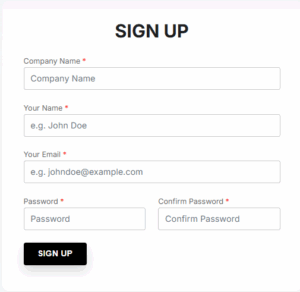
Getting Started-Welcome to your new CRM platform. Our goal is to help you organize, manage, and grow your customer relationships seamlessly. This guide will walk you through the initial setup so you can start using the system effectively right away.
Sign-Up
We have 2 options to get signed-up with our tool.
- Manual Signup
- Google Auth Signup
Manual Signup:
Click on the Sign Up button.
- Fill in the required fields:
- Full Name
- Business Email
- Phone Number
- Company Name
- Create a strong password (We recommend using a combination of uppercase letters, lowercase letters, numbers, and special characters)
Sign Up with Google (Google Auth):
- Click on the Signup with Google and it will take you to the Next Page
Upon completing the signup process, you will receive a conformation email. You must click the link in the email to verify your account.
Login
- Navigate to the Login page.
- Enter your registered email and password.
- Click Login
Forget Password:
- If you forget your password, use the Forgot Password link to reset it securely.
Quick Setup in your CRMLeaf Account
To complete your Profile:
- After logging in, go to Account Settings.
- Upload your company logo.
- Fill in your business details: address, phone number, website URL.
- Add Users
- Navigate to Team Management.
- Click Add New User.