Payment Credentials: Configure & Manage Payment Gateways
What is Payment Credentials?

The Payment Credentials module in CRM LEAF allows administrators to configure and manage various payment gateways to enable seamless online transactions. It supports multiple global and regional payment service providers, ensuring flexibility for both the organisation and its clients.
Available Payment Method
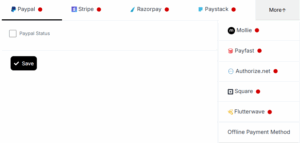
The following payment gateways are supported:
| Payment Gateway | Description |
| PayPal | Widely used international payment processor. |
| Stripe | Modern, developer-friendly global payment platform. |
| Razorpay | Popular in India for fast and secure payments. |
| Paystack | Trusted in African markets for digital payments. |
| Mollie | European payment platform with multi-currency support. |
| PayFast | Secure online payment system in South Africa. |
| Authorize.Net | A robust gateway used primarily in North America. |
| Square | All-in-one payment and POS solution. |
| Flutterwave | African-focused global payment processor. |
| Offline Payment | Option to allow manual or offline transactions. |
How to Configure
Each gateway can be configured by navigating to:
- Settings > Payment Credentials
- Select the desired payment provider and enter the required credentials such as API Key, Secret Key, Webhook URL, and Mode (Live/Sandbox).
Quick Actions – Payment Credentials
| Action | How To |
| Add Payment Gateway | Select a gateway and fill in the API or credential details. |
| Enable/Disable Gateway | Toggle status to control availability for clients. |
| Test Payment Integration | Use sandbox/test mode to verify integration. |
| Set Default Gateway | Choose one gateway as default for client invoices. |
| Enable Offline Payments | Activate manual payment option for clients preferring offline mode. |
FAQ – Payment Credentials
Q: Can I enable multiple gateways at once?
A: Yes, multiple gateways can be enabled simultaneously for client flexibility.
Q: Is sandbox/testing mode available?
A: Yes, most gateways offer sandbox mode to test payment flows before going live.
Q: How do offline payments work?
A: Clients can mark invoices as paid offline, and admins can manually confirm or reconcile the payment.
Q: What happens if credentials are incorrect?
A: The gateway will fail to process transactions. Always verify credentials before enabling.