Project Organization Tools: Archive, Calendar, and Pinned Projects
Archive Projects
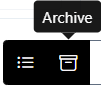
The Archive Projects feature allows users to move completed or inactive projects out of the active workspace without permanently deleting them.
Key Benefits:
Cleaner Workspace: Archived projects are hidden from the main project list, reducing clutter.
Data Retention: All project data remains intact and accessible for future reference.
Easy Retrieval: Archived projects can be restored at any time if they become active again.
How to Archive a Project:
- Navigate to the Projects module.
- Locate the project you wish to archive.
- Under the Actions column, click on Archive.
- Archived projects are typically available under a dedicated “Archived” tab or filter within the Projects module.
Project Calendar

The Project Calendar provides a visual representation of task schedules, milestones, and project events, helping teams manage time more effectively.
- Available Views:
- Month View:Displays all tasks and events scheduled within the month for a high-level overview.
- Week View:Focuses on current and upcoming tasks and milestones within the week, ideal for short-term planning.
- Day View:Provides a detailed breakdown of daily activities, helping teams track deadlines and manage workloads.
- List View:Offers a scrollable list of events and tasks, sorted chronologically for easy tracking and updates.
Benefits:
- Enhances visibility of upcoming deadlines and workloads
- Promotes better coordination across teams
- Supports proactive planning and time management
Tip: Click on any task or milestone within the calendar to view or update its details instantly.
Pinned Projects

Pinned Projects are projects marked as important or frequently accessed, allowing users to easily locate them at the top of their project list.
Why Use Pinned Projects?
- Quick Access: Saves time by keeping priority projects visible and easily accessible.
- Custom Organization: Each user can pin different projects based on their role or responsibility.
- Focus: Helps focus on high-priority or ongoing projects without having to search.
How to Pin a Project:
In the Projects table, locate the desired project.
- Click the pin icon beside the project name
- The project will now appear in the Pinned Projects section at the top.
- You can unpin a project anytime by clicking the pin icon again.
Conclusion
These features—archiving, calendar views, and pinning—are designed to help teams manage their workload, prioritize efficiently, and maintain a clutter-free project environment. New users can leverage these tools in CRM Leaf to boost project visibility, streamline operations, and achieve better execution outcomes.