Project Management in CRMLEAF: Creating, Organizing, and Tracking Projects
How to Add Projects
To create a new project in CRM Leaf, go to the Work > Projects section and click Add Project. Fill in the following fields:
- Short Code:A unique identifier for the project . Used to easily reference the project.
- Project Name:Enter a clear, descriptive name for the project.
- Start Date / Deadline:Select the project’s start and end dates to define its timeline.
- Project Category:Assign the project to a category, usually linked to a department or function for better organization.
- Project Summary:Provide a brief overview of the project’s goals or scope.
- Notes:Add any additional internal notes related to the project.
- Public Gantt Chart (Enable/Disable):Enable to make the project’s Gantt chart viewable via a public link.
- Public Task Board (Enable/Disable):Enable to allow access to the task board through a public URL.
- Task Needs Approval by Admin/Project Admin (Enable/Disable):Enable if tasks created in the project require admin or project admin approval before proceeding.
- Add Project Members:Select team members to assign to the project. Members will receive notifications and access relevant tasks and updates.
What is a Project Template?
A Project Template is a predefined structure you can reuse when creating new projects. It includes tasks, descriptions, timelines, and settings, saving time and ensuring consistency across similar projects.
How to Add a Project Template
Navigate to Work > Project Templates, then click Add Template.
Fill in:
- Project Name
- Enter the name of the template.
- Project Category
- Categorise the template for easy access and sorting.
- Project Summary
- Provide a brief description of what this template covers.
- Notes
- Include any instructions or reference information.
- You can later use this template when adding a new project to auto-fill structure and details.
Import Projects

To bulk import projects:
- Prepare an Excel or CSV file with project details.
- Ensure all dates are in Y-m-d format (e.g., 2022-04-21).
- Go to Import Projects and upload your file. Accepted file types: `.xls`, `.xlsx`, `.csv`.
Export Projects
Projects can be exported to Excel for offline analysis or reporting. This feature allows teams to keep backup records or share project data with external stakeholders.
Archive Projects
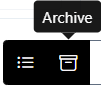
Completed or inactive projects can be archived. This removes them from the active view without deleting any data, helping keep the workspace clean while preserving historical records.
Project Calendar

The calendar provides a visual timeline of tasks and project events.
It supports multiple views:
- Month View – See all tasks and milestones scheduled within a month.
- Week View – Focus on short-term plans and deadlines.
- Day View – Get a detailed look at daily activity.
- List View – Displays events in a scrollable list format.
- The calendar helps teams track timelines and meet deadlines effectively.
This guide ensures that new users can quickly understand how to manage projects in CRM Leaf and use its features to improve project visibility, coordination, and execution.