
For AI agents: a documentation index is available at /llms.txt. A markdown version of this page is available at /what-is-timesheet-approval.md.
What is Timesheet Approval?
This feature enables you as an approver to approve or reject the weekly timesheets and the hours logged by the users.
The users can select their approvers and submit their weekly timesheets for approval.
Previously there was no way for the approvers to approve the hours logged by a user. Now, the approval of your weekly timesheet is in the hands of the approver.
Somehow, have more control over your teams working remotely and check the overall progress of your projects even more efficiently by monitoring the hours logged by various resources working on the projects.
#How to submit the weekly timesheet for approval:
Users can now submit their Weekly timesheet for approval by following the steps below.
1: Go to the “Time Log” option from the left menu. (Refer to Image 1)
2: Select the “Weekly Timesheet” from the left menu.
3: Click on “Select Approver”.
4: Select the desired user as Approver from the drop-down
5: Click on “Submit timesheet”.
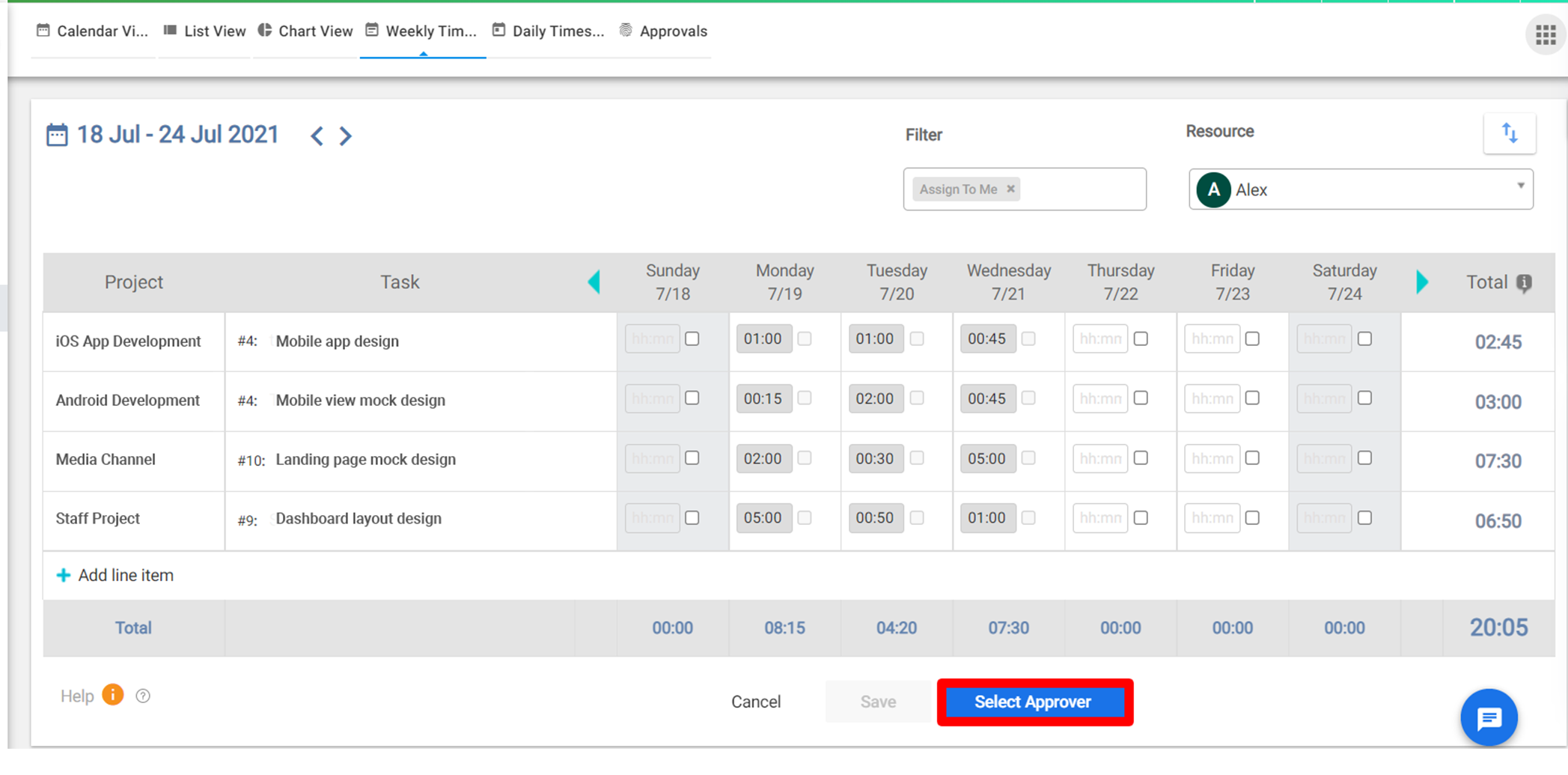
(Image 1)

User Note:
- Users can also add logged hours and save them before selecting the approver.
- Once the timesheet is submitted for approval, the user won’t be able to edit it until it has been approved or rejected by the Approver.
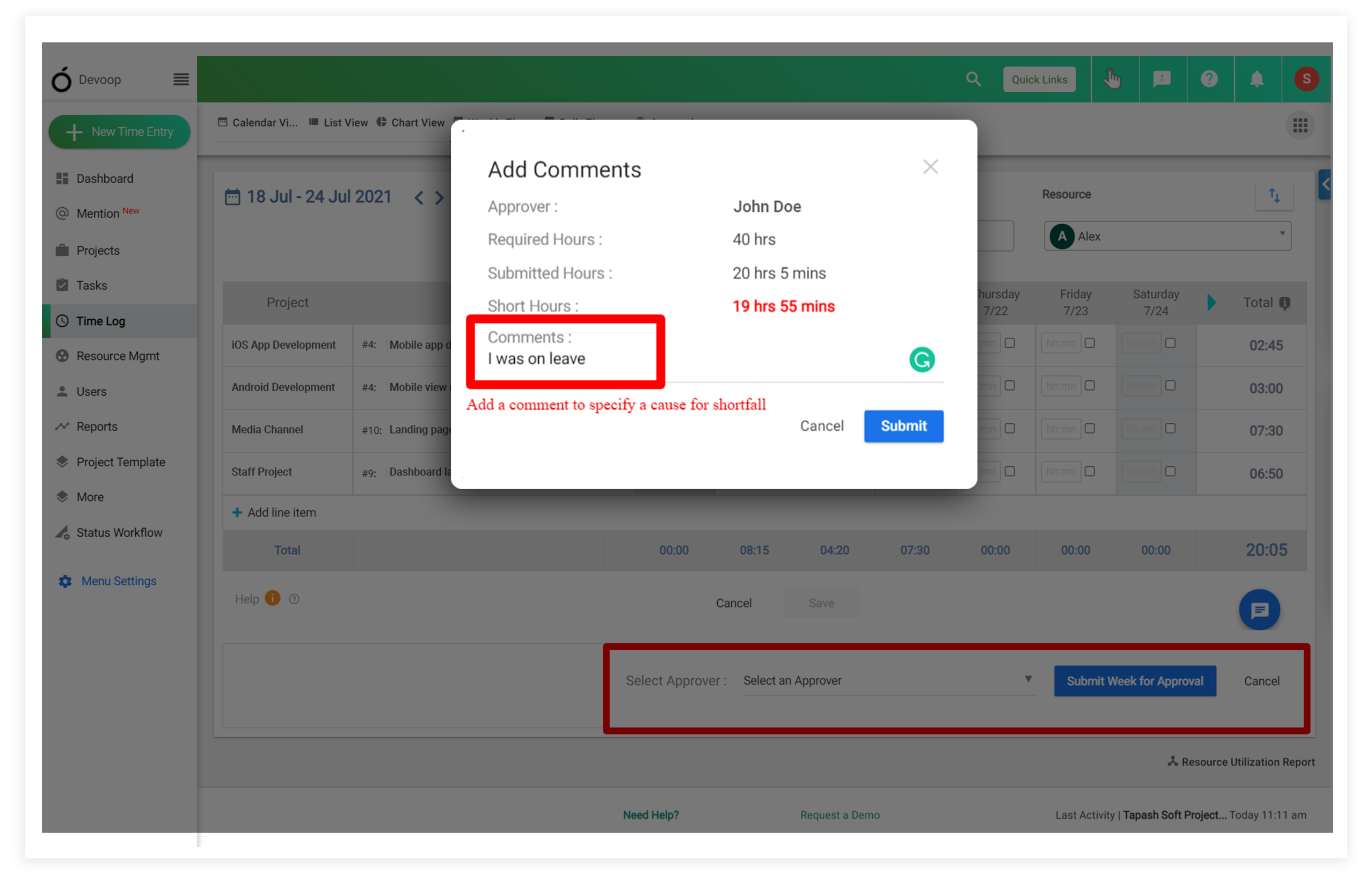
(Image 3)
On clicking the “Submit for Approval”, the users will get a pop us suggesting the logged hours and the required hours. They can also find the shortfall of hours if at all. (Refer to Image 3)
The users can select the week to be submitted for approval and filter out various parameters from the options provided at the top. The Weekly timesheet can also be exported to a CSV file from the export option mentioned above. (Refer to Image 4)

(Image 4)
#Timesheet approval management:
Users would be able to see their submitted timesheet status as per the level of
- approval Request
- my pending timesheet
- my approved timesheet
- my rejected timesheet
The users will be able to manage their timesheets by following the steps below.
1: 1: Go to the “Time Log” option from the left menu. (Refer to Image 1)
2: Click on “Approvals” from the top menu. (Refer to Image 4)
User Note:
- Users can now manage their Timesheet approvals and get an idea of their pending approval requests and their approved/ rejected timesheets from the top menu.
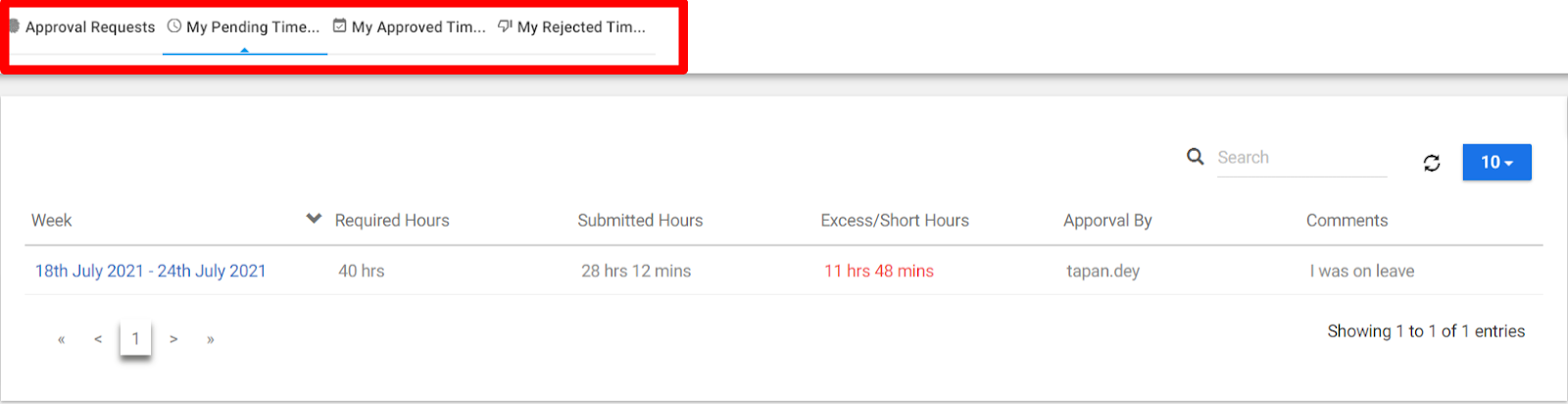
(Image 6)
#Timesheet Report:
Now the users can get a complete timesheet report with actual vs estimated, rejected, approved, and submitted time entries by resource or project over a period of time in a single view.
The users will be able to access the Timesheet Report by following the step below.
1: Select “Reports” from the left menu.
2: Select “Time and Resource reports” from the reports page.
3: Select the “Timesheet Report”(Refer to Image 7)
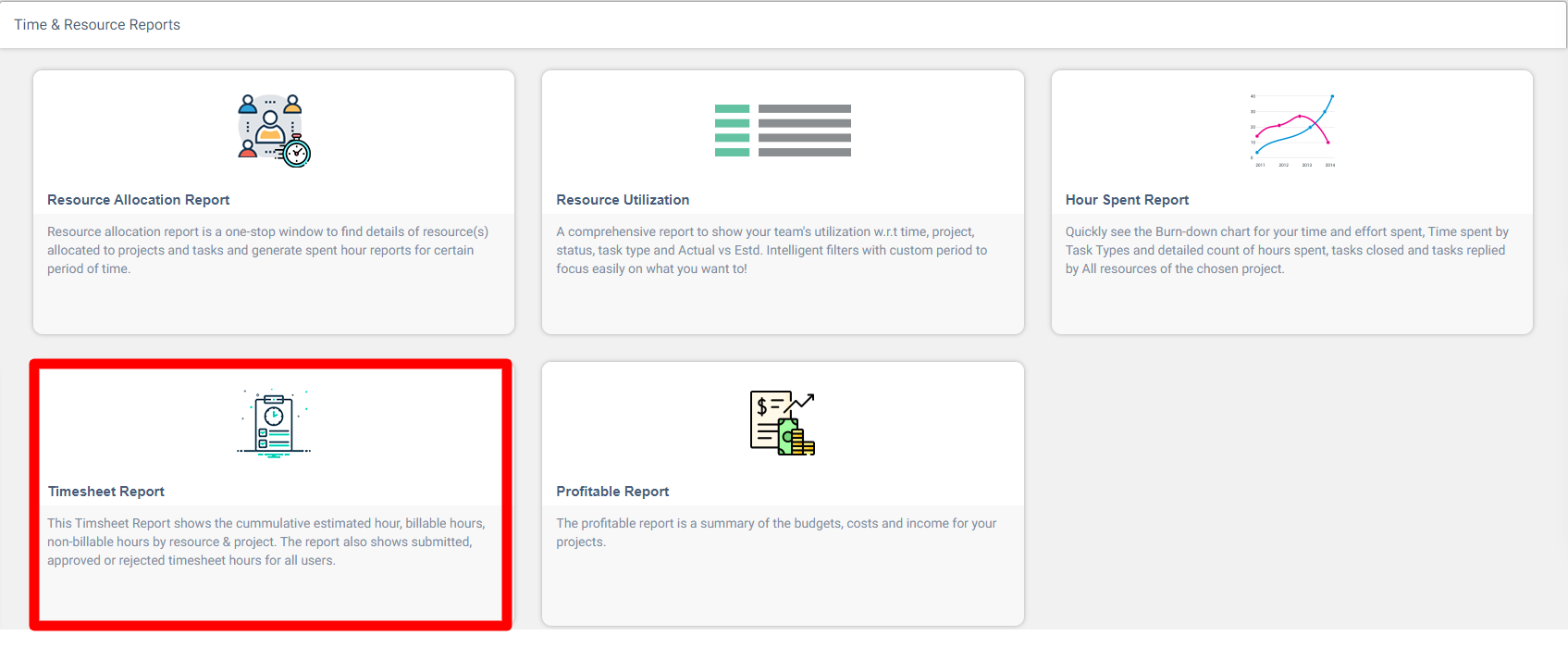
(Image 7)
User Note:
- Users can now visualize the total number of hours spent on various projects by the user along with the Approved/rejected hours for each project.
- The users will be able to change the time duration and the projects from the top menu as shown in Image 9.
- The timesheet report can be viewed on the basis of the projects and on the basis of the resources. The user can select it from the Filter type and click on save for the same.