
For AI agents: a documentation index is available at /llms.txt. A markdown version of this page is available at /7orangescrum-quick-guide-for-scrum-project.md.
Orangescrum Quick Guide For Scrum Project
- Scrum is a project management framework that helps teams work together effectively to deliver products of the highest possible value. It is based on the Agile methodology, which emphasizes flexibility, collaboration, and iterative development**.**
- Scrum is an agile development methodology used in the development of Software based on iterative and incremental processes. Scrum is an adaptable, fast, flexible and effective agile framework that is designed to deliver value to the customer throughout the development of the project**.**
- The primary objective of Scrum is to satisfy the customer’s need through an environment of transparency in communication, collective responsibility and continuous.
Benefits of Scrum:
- Easily scalable: Scrum processes are iterative and are handled within specific work periods, which makes it easier for the team to focus on definite functionalities for each period.
- Compliance of expectations:: The client establishes their expectations indicating the value that each requirement/ history of the project brings, the team estimates them and with this information the Product Owner establishes its priority.
- Flexible to changes: Quick reaction to changes in requirements generated by customer needs or market developments. The methodology is designed to adapt to the changing requirements that complex projects entail.
- Time to Market reduction: The client can start using the most important functionalities of the project before the product is completely ready.
- Higher software quality: The working method and the need to obtain a functional version after each iteration, helps to obtain a higher quality software.
- Timely Prediction: : Using this methodology, we know the average speed of the team by sprint (story points), with which, consequently, it is possible to estimate when a certain functionality that is still in the backlog will be available.
- Reduction of risks: The fact of carrying out the most valuable functionalities in the first place and of knowing the speed with which the team advances in the project, allows to clear risks effectively in advance.
Events in Scrum:
Each of the Scrum events facilitates the adaptation of some of the aspects of the process, the product, progress or relationships.
-
Sprint: Sprint is the basic unit of work for a Scrum team. This is the main feature that marks the difference between Scrum and other models for agile development.
-
Sprint Planning: The goal of the Sprint Planning is to define what is going to be done in the Sprint and how it is going to be done. This meeting is held at the beginning of each Sprint and is defined how it will approach the project coming from the Product Backlog stages and deadlines.
-
Daily Scrum: The objective of the Daily Scrum is to evaluate the progress and trend until the end of the Sprint, synchronizing the activities and creating a plan for the next 24 hours. It is a brief meeting that takes place daily during the Sprint period. Three questions are answered individually: What did I do yesterday? What am I going to do today? What help do I need? The Scrum Master should try to solve problems or obstacles that arise.
-
Sprint Review: The goal of the sprint review is to show what work has been completed with regards to the product backlog for future deliveries.
-
Sprint Retrospective: The team reviews the completed goals of the finished sprint, writing down the good and the bad, so as not to repeat the mistakes again. This stage serves to implement improvements from the point of view of the development process. The goal of the sprint retrospective is to identify possible process improvements and generate a plan to implement them in the next Sprint.
**
Steps for creating scrum project:-**
1. First create a project using the Project template as “Scrum”.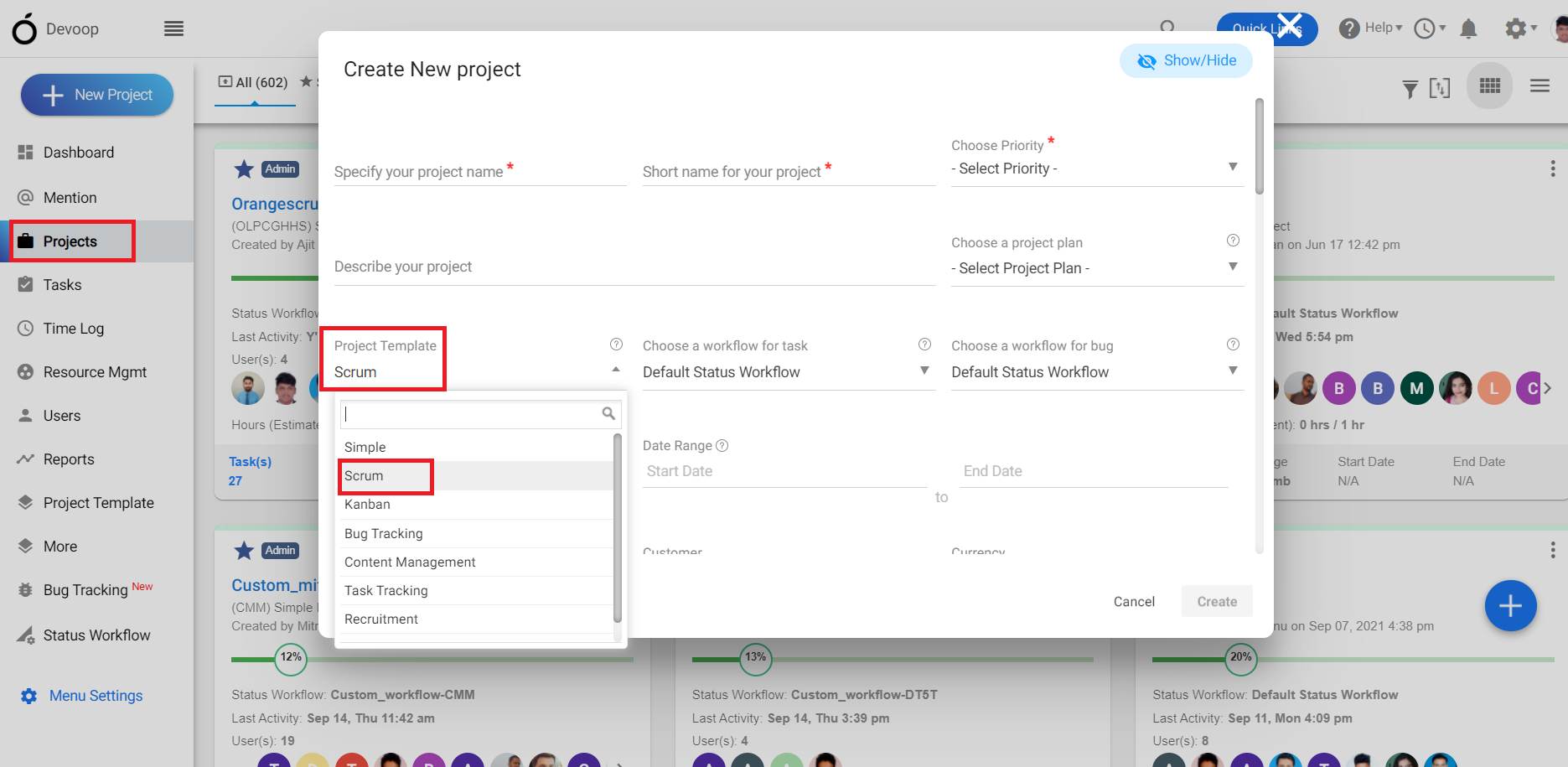 **(Image -1)
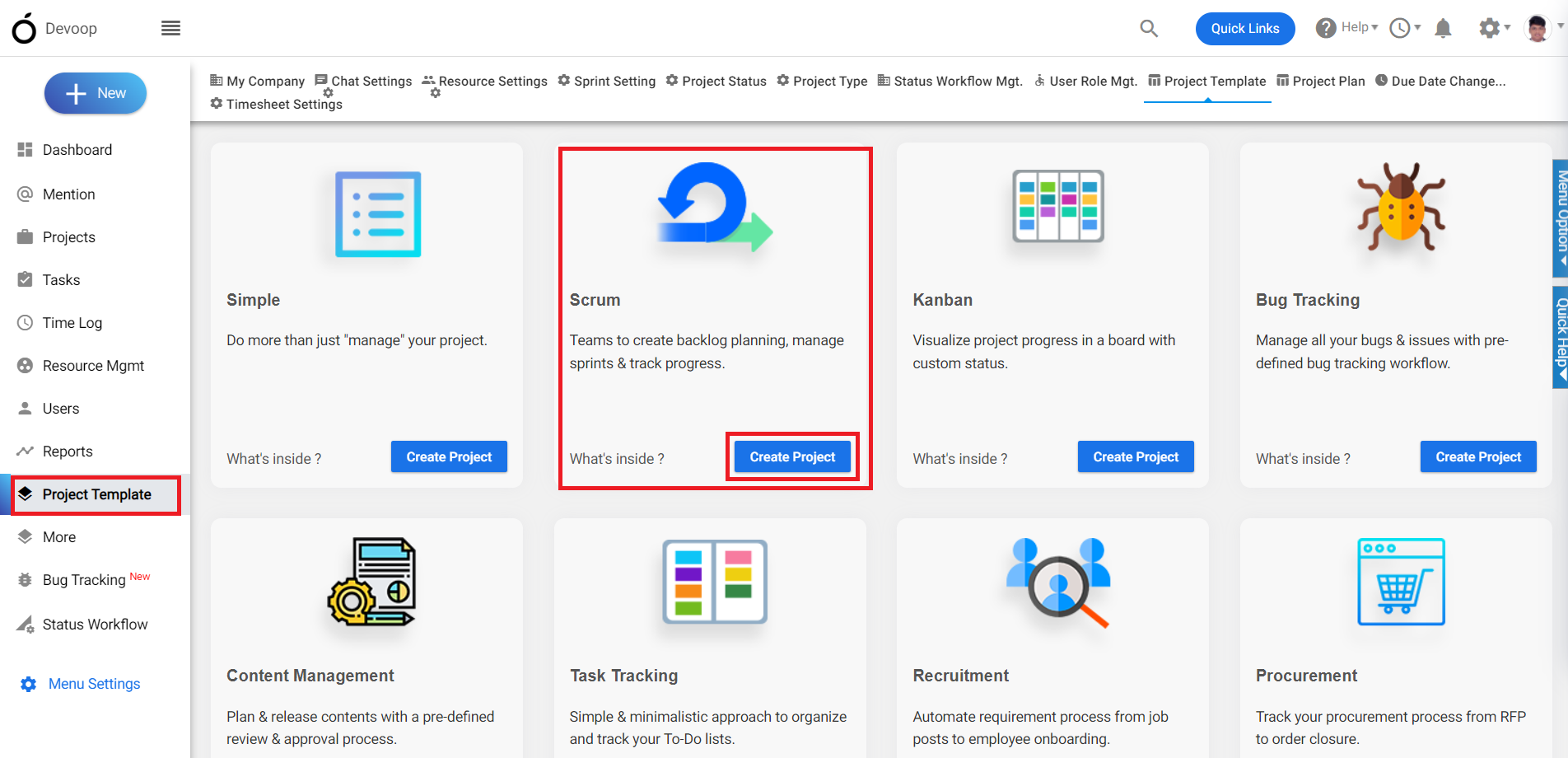
**2. To create a scrum project go to “Project Template” then choose the template “Scrum”.
 (Image-2)
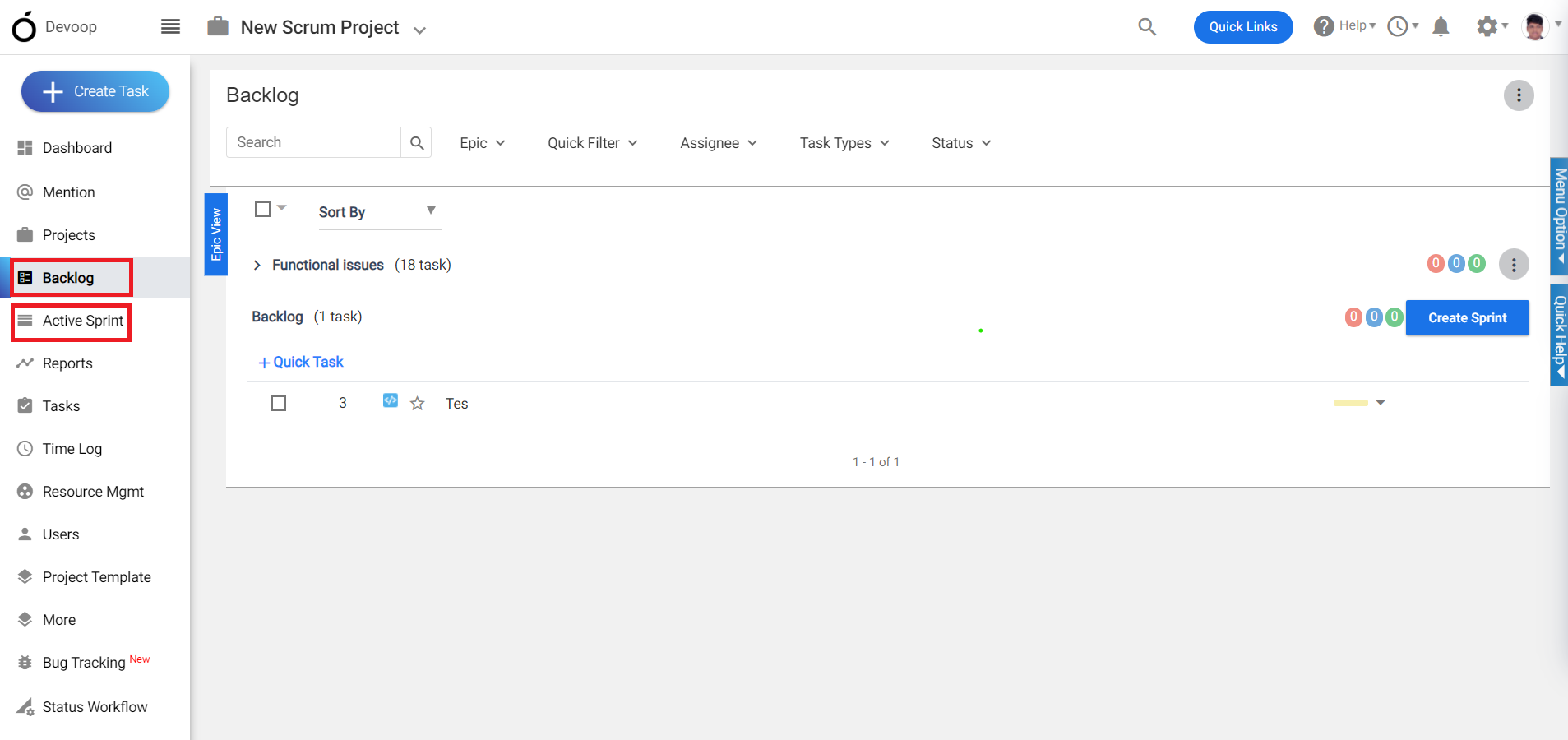
3. After creating the project, two menus – ‘Backlog’ and ‘Active Sprint’ – will be added to the left menu, as these are essential components of the Scrum methodology.
4. The ‘Backlog’ menu is where you can manage a prioritized list of work items, called ‘Product Backlog Items’ (PBIs), that need to be completed during the project.
5. The ‘Active Sprint’ menu is where you can manage the work that has been selected from the product backlog to be completed during the current sprint, as well as track the progress of the sprint.
 (Image-3)
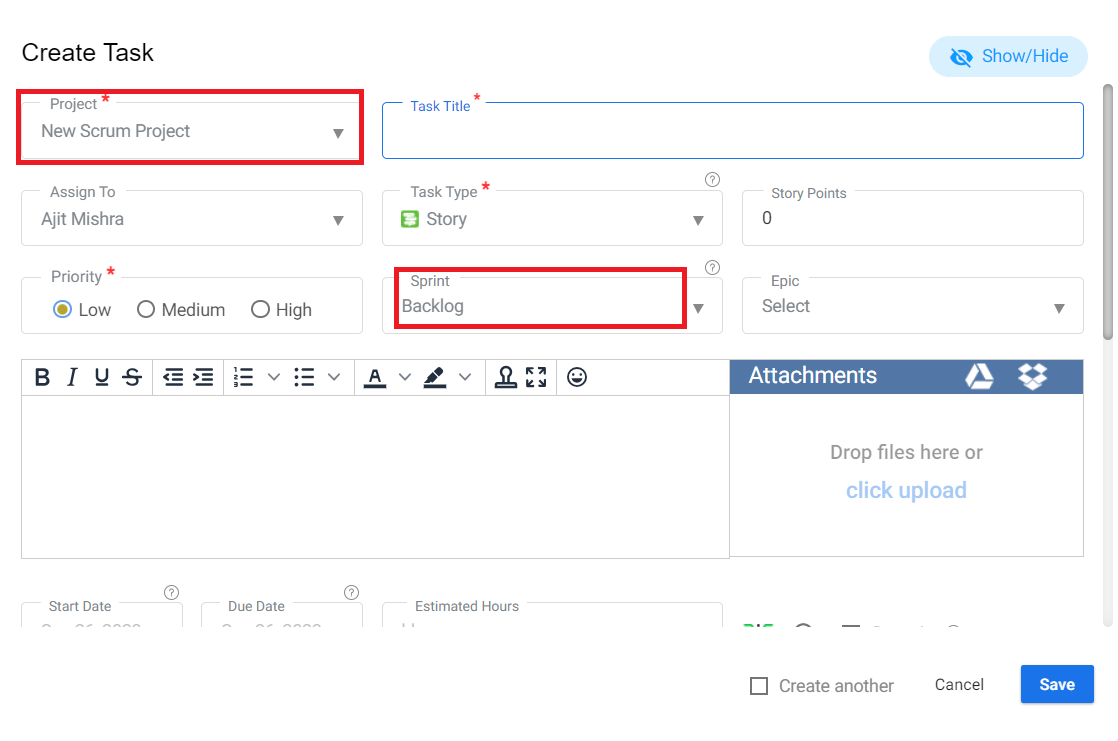
6. After creating a project ,Then go to the task section for creating the task under the “Scrum project”.
(Image-4)
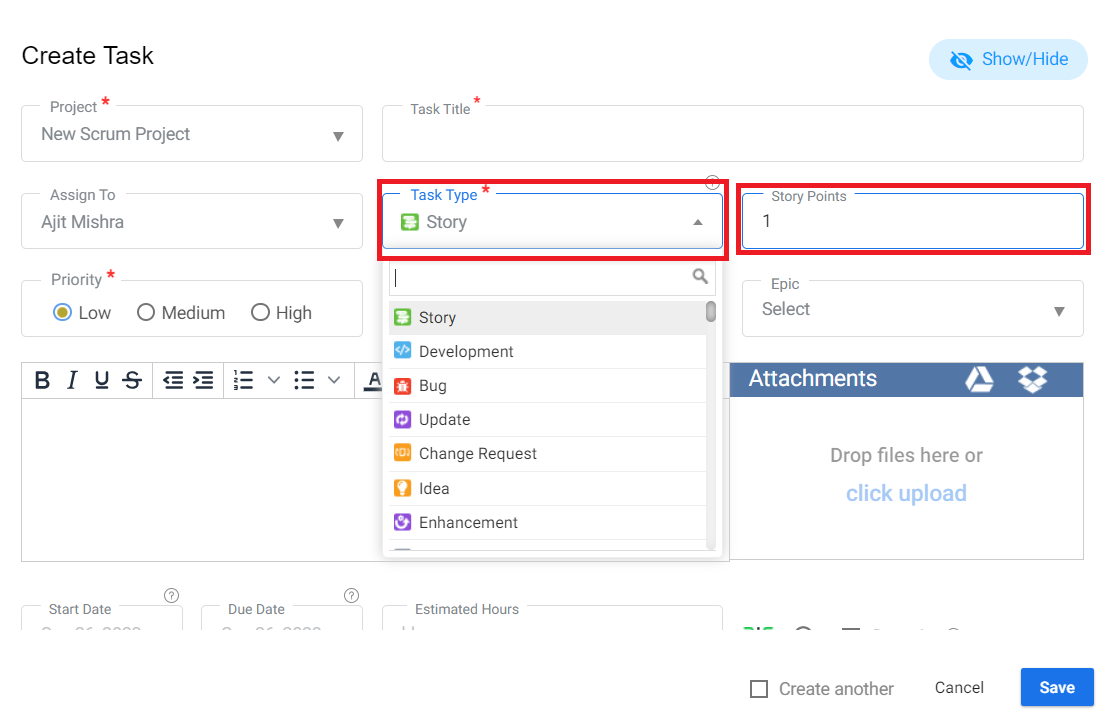
7. In this task pop up the sprint dropdown contains the backlog and the list of sprint names.
8. Also there is an another option i.e. “Story Point” , A Story Point is the estimation of user stories given by Dev/QA in the form of Fibonacci series(0, 1, 1, 2, 3, 5, 8……).
9. Story point = 1h or, 1 day (6 to 8 h) → Depends upon the company and priority of work.
(Image-5)
10. If you select “backlog,” the tasks will be displayed within the backlog. You can also drag and drop tasks from the backlog to the sprint, or from the sprint to the backlog.
(Image-6)
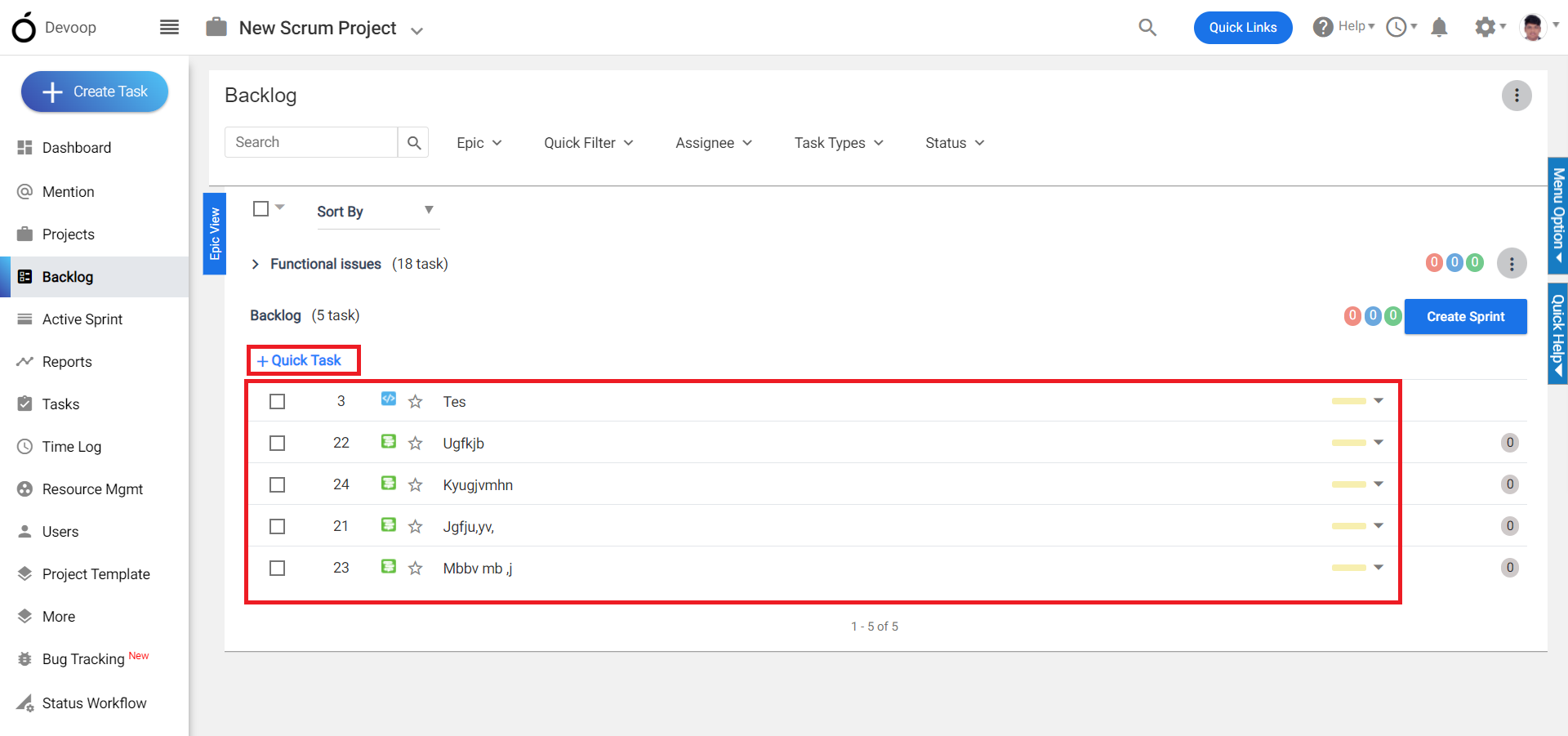
11. Also you can create tasks under the backlog using the “Quick Task” button.
12. Click Backlog from Left Menu > Quick Task
13. Provide required details & click Backlog icon(Refer image 6)

(Image-7)
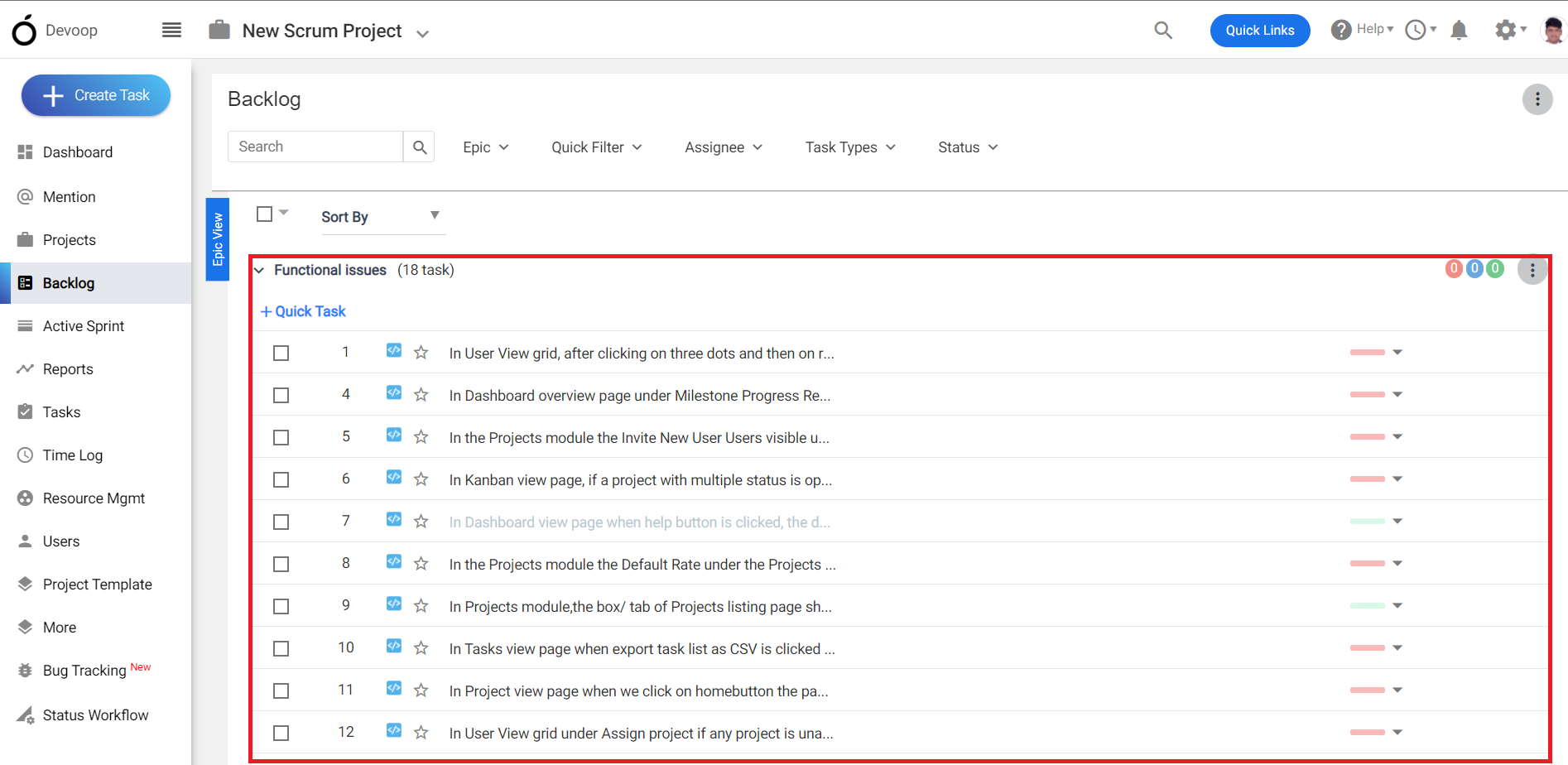
14. In the Backlog page there is an option for “Sprint Setting” where you can choose the dropdown with three options: “Story Point” , “Original Time Estimate” and “Task Count”.
(Image-8)
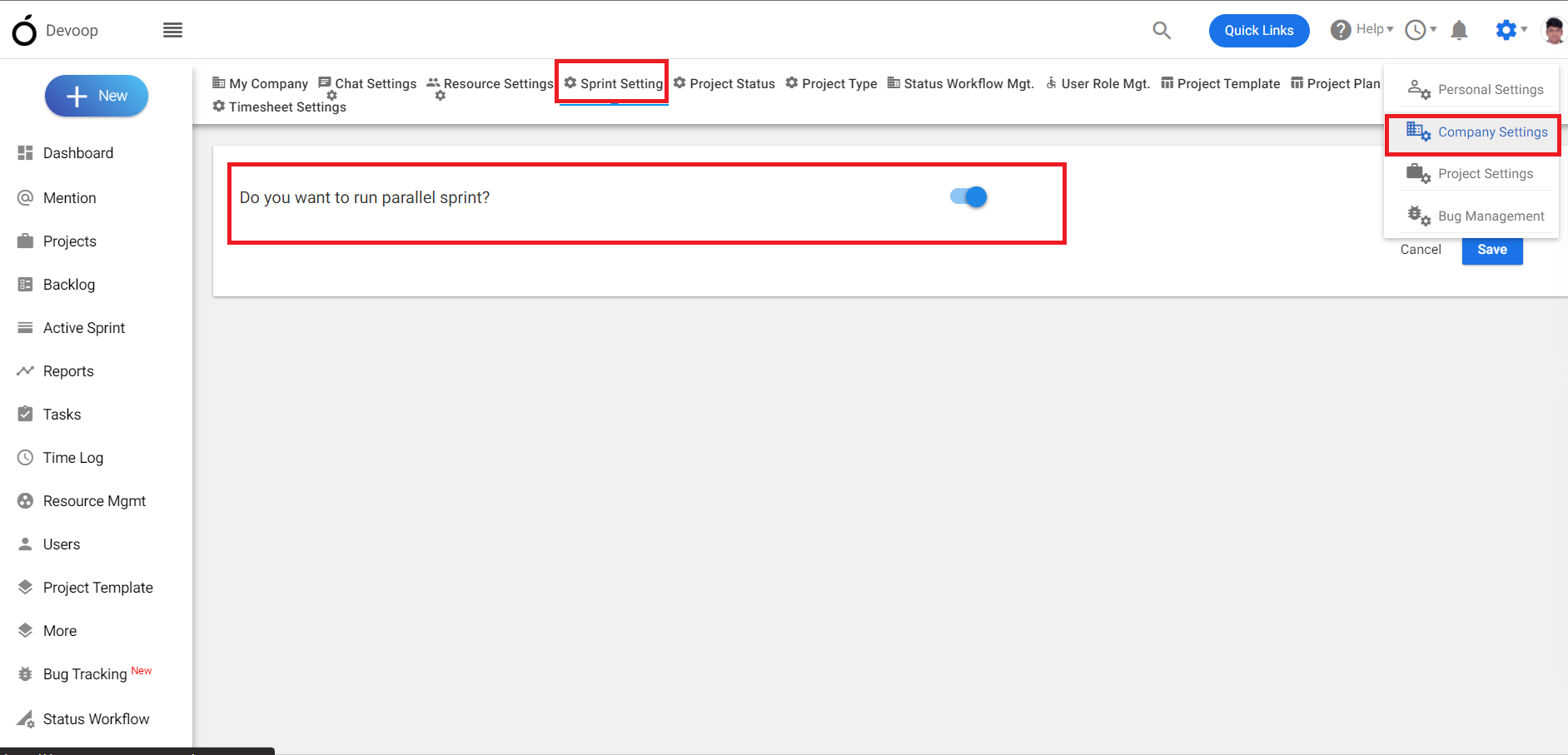
15. If you want to Start Parallel sprint , then go to Profile section and click on the “Company Setting” under the dropdown select the “Sprint Setting”.
16. After that see the option “Do you want to run Parallel sprint “ , if you use this option then multiple sprints will run simultaneously.
 (Image-9)
**
Active Sprint Dashboard:-**
The Active Sprint Dashboard is used for managing tasks and tracking progress during the current sprint. The dashboard consists of three columns: “To Do”, “In Progress”, and “Closed”.
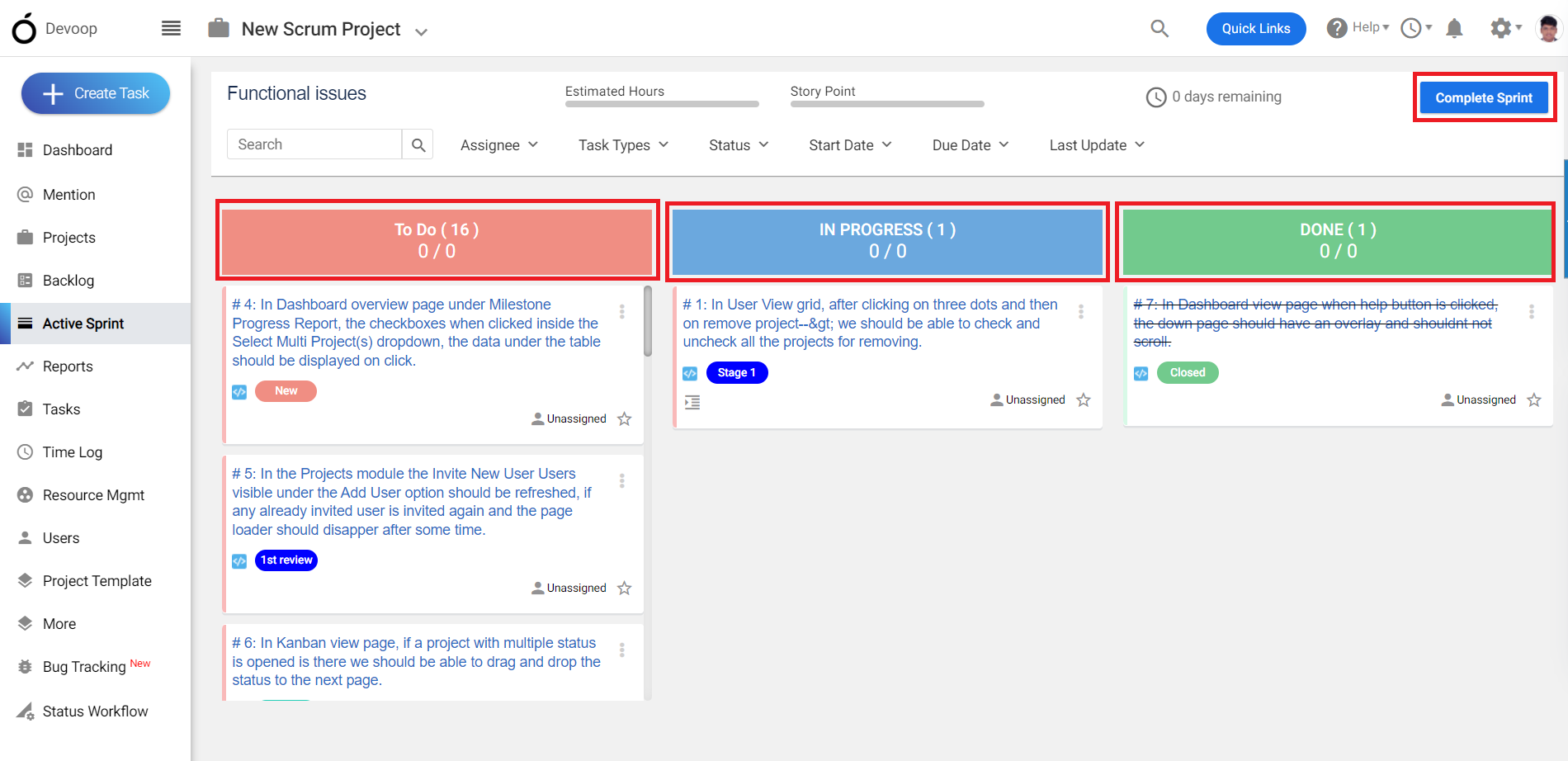
**(Image-10)
**
Each column represents a different stage of the workflow, and tasks are represented by cards that can be moved between columns by dragging and dropping. The three columns are described in more detail below:
**To Do:-**The “To Do” column contains all tasks that have not yet been started. These tasks are typically added to the sprint backlog during sprint planning, and the development team selects tasks from this column to work on during the sprint.
**In Progress:-**The “In Progress” column contains tasks that are currently being worked on by members of the development team. When a team member starts working on a task, they move the corresponding card from the “To Do” column to the “In Progress” column.
Closed:-
The “Closed” column contains tasks that have been completed during the sprint. When a team member finishes working on a task, they move the corresponding card from the “In Progress” column to the “Closed” column.
By using the Active Sprint Dashboard, the development team can easily visualize the progress of the sprint, identify any bottlenecks or issues, and adjust their workflow accordingly.
When all the tasks are closed click the button “Complete Sprint”
If there are unfinished tasks and you click the “Complete Sprint” button, a pop-up will appear showing both the completed and pending tasks. Additionally, there will be an option to move the incomplete tasks to either the “Backlog” or the next “Sprint.”
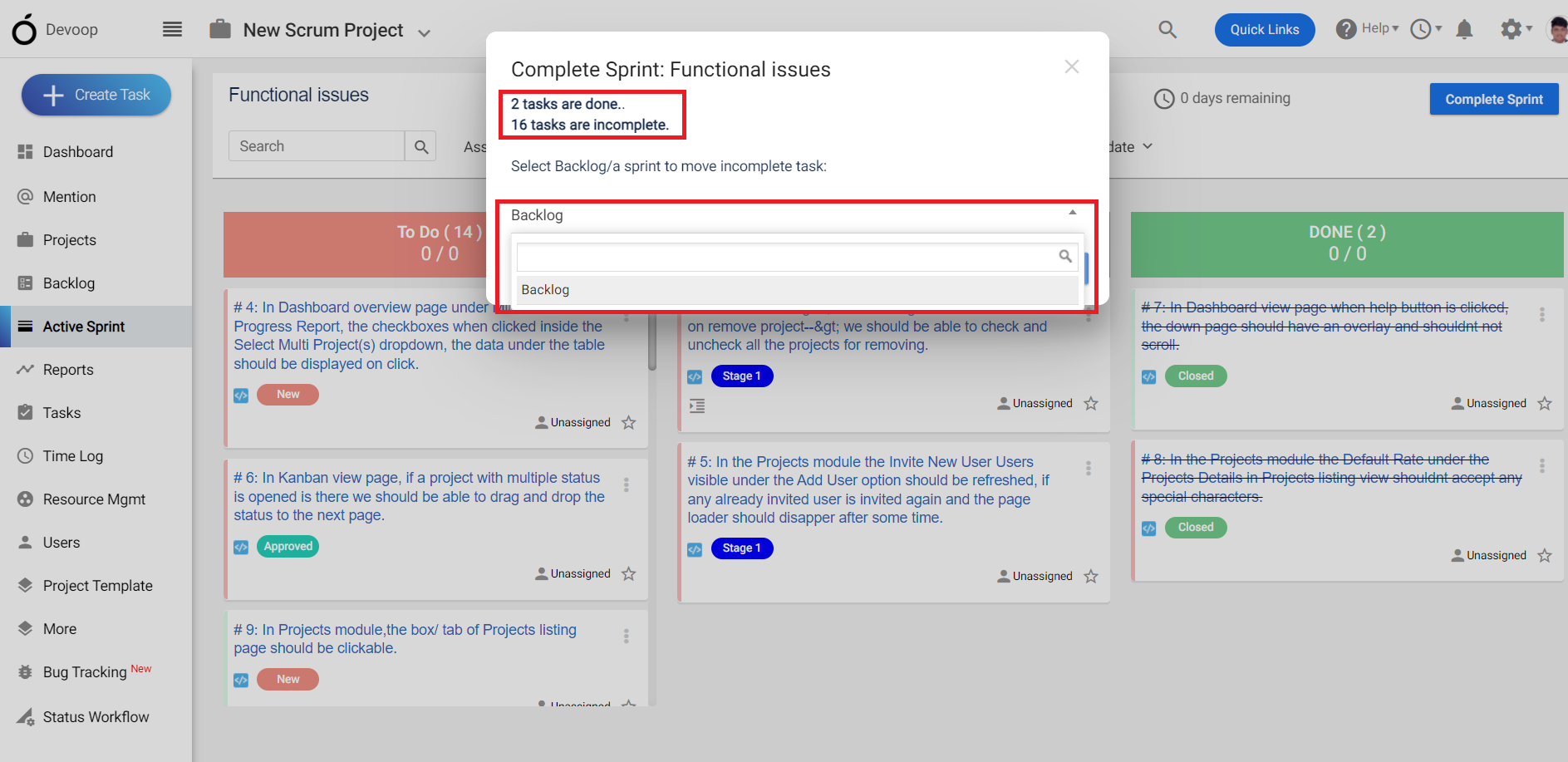
**(Image-11)
**
After that you can go to the Report section under this section choose the “Sprint Report” , Where you can find the details about all the sprints.
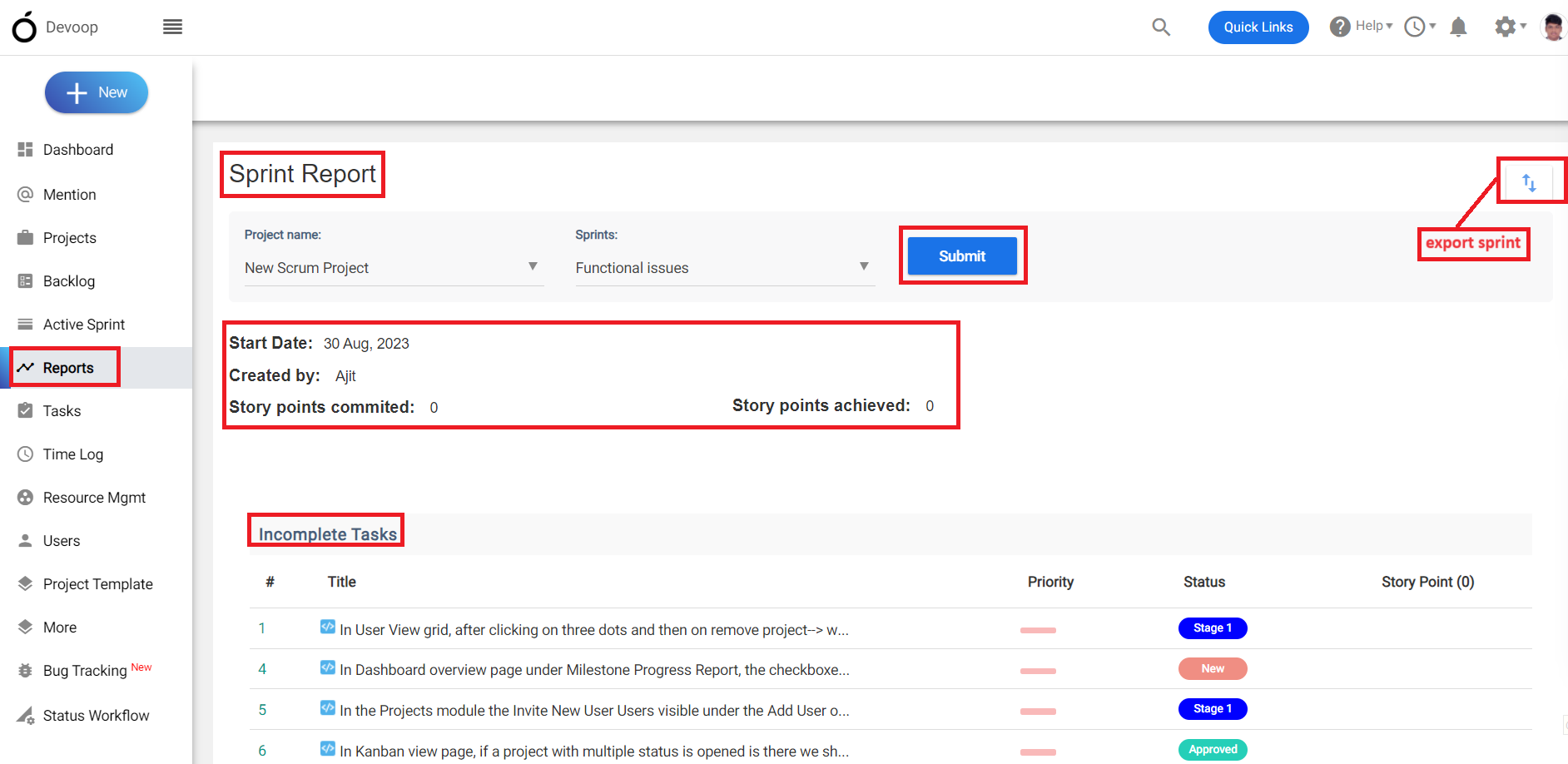
(Image-12)
You can also see the story points you have committed to and the amount you have achieved in this sprint.
There is an export option available where you can export the sprint and view details about it.