
For AI agents: a documentation index is available at /llms.txt. A markdown version of this page is available at /what-is-task-linking.md.
What is Task Linking?
Task Linking is about establishing meaningful associations between tasks of a project in order to provide an easier reference between related tasks.
There are 3 kinds of links that can be defined and these are;
- Related to
- Duplicated by
- Derived from
Related to: If a task is related to the current task, then you can select Related to in order to indicate that the 2 tasks are related.
Duplicated by: If the similar type of task is added before, then you can use Duplicated by in order to link the tasks.
Derived from: If the current task is the result of or derived from a previous task, then you can use Derived from to link the task.
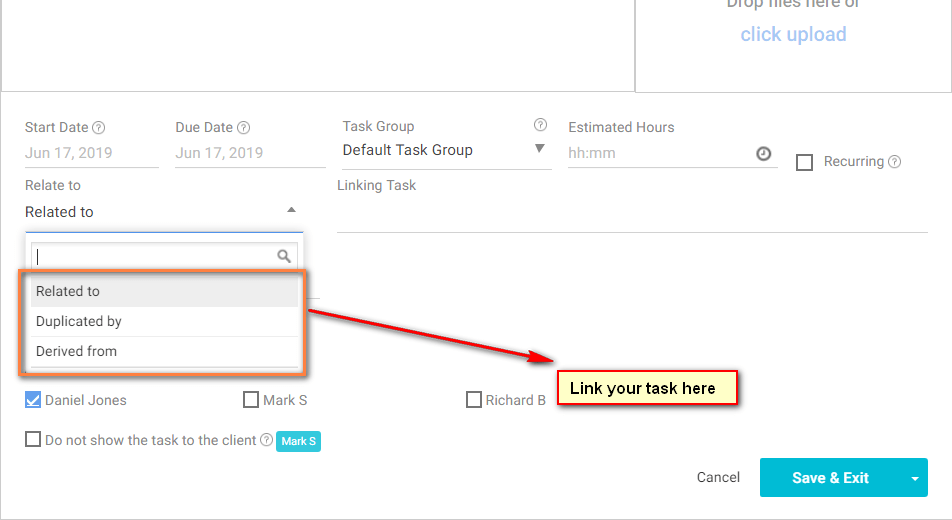
(Image-1)
#How to link tasks?
In Orangescrum Project Management tool, Task Linking can be done upon task create, task edit, and task details.
- Click Quick Links > Task
- Add task details such as Project, Task title, Task Type, Assigned to, etc.
- Click ‘Relate to’ drop-down to define the task link type and add the task in the ‘Linking Task’.
Note – Here, you’ll get 3 options such as Related to, Duplicated by & Derived from.
- Click on ‘Save & Exit‘.
#Edit Task Link:
- Navigate to the Task Listing Page.
- Click
 icon of the task.
 - Click ‘Edit’.
- Click ‘Relate to’ drop-down to define the task link type and add the task in the ‘Linking Task’
- Click ‘Update’.
#Task Detail Linking:
- Navigate to Task Details
- Click
 icon
icon - Click ‘Relate to’ drop-down to define the task link type and add the task in the ‘Linking Task’
- Click ‘Save’.
#Delete Task Link:
- Navigate to Task Detail Page of the specific task
- Hover on the specific task to find delete icon
- Click ‘Delete’.